

If you’re looking to add your LinkedIn profile URL to your resume, or want to share it with someone on WhatsApp, then let's be honest, the default URL seems ugly and doesn’t help you stand out.
You know, those long URLs with numbers in the end, nobody wants to type those to view your profile.
But what if I tell you there's a better way? A way that could help you create professional, yet easier URLs to share with your colleagues. In this guide, I’ll share the way to create a short URL for your LinkedIn profile.
Why Should We Shorten LinkedIn URLs?
Before sharing the tips, let’s be practical about why we should shorten our profile URLs on LinkedIn? There could be multiple reasons, like:
- It makes you look professional and helps you stand out on LinkedIn
- You could easily put them on your resume, and your employers can easily take a look.
- It shows that you pay great attention to little things, which could be a plus.
How to Create Short URLs on LinkedIn
There are multiple ways to create short links for your LinkedIn profile. Here are some which we are going to cover in this post.
- Changing Profile Link from Browser
- Changing Profile Link from LinkedIn App
- Using Bitly to Shorten Links
So, let's get started with the first method.
1. Changing Profile Link from Browser
This is one of the easiest methods to create a short URL for your LinkedIn profile.
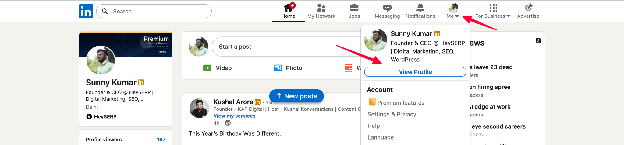
In this step, you simply need to log in to your LinkedIn account and head over to the profile icon, click on the “Me” button, and then “View Profile.”
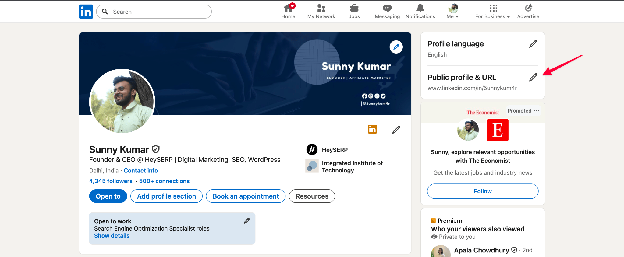
Afterward, you need to click on the edit icon shown just after the “Public profile & URL” section, as shown in the image.
Here you’ll see LinkedIn URL like this: https://www.linkedin.com/in/your-name-345b442.
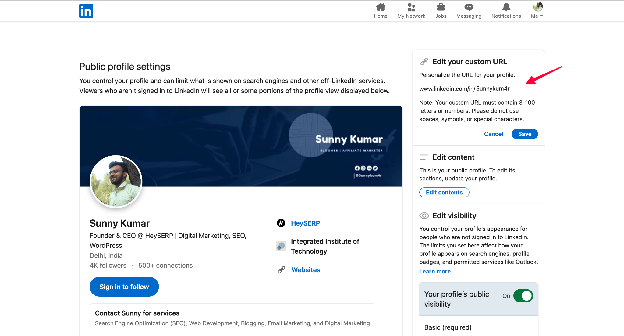
Clicking the edit icon will take you to a screen displaying your profile and the same URL shown in the "Public profile & URL" section.
Click on the edit icon again, and it will open an input box to change your username.
Use a professional username here, and once done, click the “Save” button to apply the changes.
2. Changing Profile Link from LinkedIn App
The second easiest method to create your short URL on LinkedIn is to use its mobile app. To do so, you need to open your “LinkedIn” app.
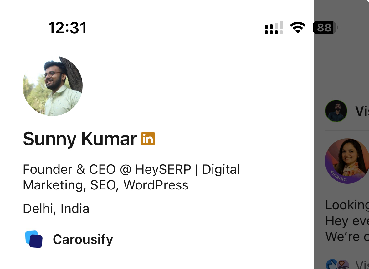
Click your name in the top-right corner. A pop-up overlay will open on the left side. Click your name there to open your profile page.
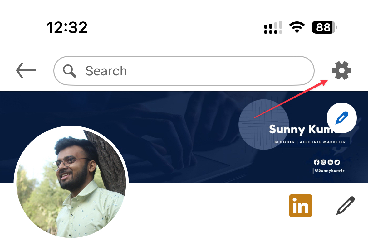
Now click on the gear icon, as shown in the image above. It will open the settings page. From here, you need to select the “Visibility” option.
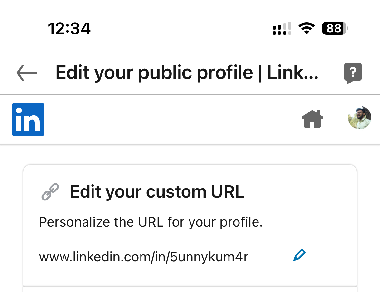
Once you’re inside the visibility option, it will show you the option to “Edit your public profile.” Now click on “Edit your custom URL” to create your short URL on LinkedIn.
You've successfully changed your short URL on LinkedIn.
3. Using Bitly to Shorten Links
For some reasons, if you're thinking of using a URL shortener for creating links rather than sharing LinkedIn professional URLs, then you can use Bitly. It is an advanced platform for link shortening and sharing that tracks performance and other metrics.
To create links using Bitly, follow these simple steps:
- Log in to your Bitly account or create a new one.
- Click on the "Create Link" button and add your LinkedIn URL in the destination field, and add a short link alias if needed.
- Click on “Create your Link” and your link will be created.
Pro Tips: When you’re creating your LinkedIn profile URL, always make sure that it is correct and free of any misspellings. Also, it is advisable to use a professional name rather than using funny names or any numbers for better impact.
Use Carousify to Boost Your LinkedIn Growth
Looking to grow more on LinkedIn?
Carousify can help you boost your growth with LinkedIn carousels and AI-generated posts. You need to register on Carousify, select a plan that is suitable for your needs, and start scheduling your posts.
More than 85% of people have seen 650% growth in impressions and around 3x more engagements on their posts by switching to Carousify. Be one of them and share your success stories at [email protected] to get featured on our blog.
Wrapping Up!
So I have shared all the ways you can use to create a short URL for your LinkedIn profile. Creating it will surely benefit you and help you stand out on your resume.
But creating a short URL is not the only way that makes you stand out; having more followers and engagement will, and if you’re looking for better growth on LinkedIn you can use Carousify.com - use coupon SAVE30 for flat 30% off.