

If you're managing multiple LinkedIn accounts for clients, running different businesses, or handling company pages along with your personal profile, you've probably wondered: "Can I manage multiple LinkedIn accounts from the same device?"
The short answer is complicated. While many people try to juggle multiple LinkedIn accounts, doing it the wrong way can lead to serious consequences – including permanent account restrictions.
I've been managing multiple LinkedIn accounts for my clients and my own business for the past year, and I've learned the hard way what works and what doesn't. In this guide, I'll share everything you need to know about managing multiple LinkedIn accounts safely.
Can You Have Multiple LinkedIn Accounts?
Let me get straight to the point: LinkedIn's terms of service prohibit creating multiple personal accounts.
According to LinkedIn's User Agreement, each person is allowed only one personal LinkedIn account. Creating multiple personal profiles is a direct violation of their policies.
Why does LinkedIn have this rule?
- Prevents spam and fake profiles – Stops people from creating fake accounts for malicious purposes
- Maintains platform integrity – Ensures authentic professional networking
- Reduces manipulation – Prevents artificial engagement boosting
- Protects user experience – Keeps the platform trustworthy for genuine professionals
However, LinkedIn does allow you to manage multiple business pages from a single personal account. You can also help manage other people's accounts if you have proper authorization.
What Happens If You Create Multiple LinkedIn Accounts?
I've seen this happen to several people, and the consequences are not pleasant.
LinkedIn's detection is surprisingly good:
- Same device detection – LinkedIn tracks your device fingerprint, IP address, and browser cookies
- Pattern recognition – Switching between accounts on the same browser raises red flags
- Activity monitoring – Similar posting patterns across accounts trigger alerts
- Email and phone verification – Using the same contact details for multiple accounts
Potential consequences:
- Temporary restrictions – Limited access to certain features
- Account suspension – Unable to log in for days or weeks
- Permanent ban – Complete loss of all your connections and content
- All linked accounts affected – If one account gets flagged, others connected to the same device might also face restrictions
The Wrong Ways People Manage Multiple LinkedIn Accounts
Before I tell you the right way, let me share what NOT to do:
1. Logging In and Out Repeatedly
Many people think logging out of one account and logging into another is safe. It's not. LinkedIn still tracks your device and browser, and frequent switching is a major red flag.
2. Using Incognito Mode
Incognito mode doesn't hide your IP address or device fingerprint. LinkedIn can still identify that multiple accounts are being accessed from the same device.
3. Using Different Browsers
Opening Chrome for one account and Firefox for another? LinkedIn's tracking goes beyond just browser cookies. Your IP address and device characteristics remain the same.
4. Using VPNs
While VPNs can mask your IP address, LinkedIn's algorithms are sophisticated enough to detect unusual patterns. Plus, constantly changing locations looks suspicious and can trigger security checks.
The Right Way to Manage Multiple LinkedIn Accounts
Now, here's what actually works without risking your accounts:
Option 1: Use Different Devices (Not Practical)
The safest way is using completely separate devices for each account – one laptop for your personal profile, another for your business, and so on.
The problem? This is expensive, impractical, and honestly, who wants to carry around three different laptops?
Option 2: Use a Social Media Management Tool Like Carousify
This is the solution I use, and it's been a game-changer!
Carousify is a LinkedIn management platform that lets you manage multiple LinkedIn accounts safely without violating LinkedIn's terms of service.
Why Carousify is different:
- LinkedIn API Integration – Uses official LinkedIn APIs, not risky browser automation
- 100% Compliant – Follows all LinkedIn guidelines and policies
- Secure Access – Never asks for your LinkedIn password
- Team Collaboration – Share access without sharing credentials
- No Device Issues – Manage all accounts from one dashboard safely
I've been using our tool, Carousify, for over 8 months now, and I've never faced any account restrictions or issues.
How to Manage Multiple LinkedIn Accounts with Carousify
Let me walk you through the exact process I use to manage multiple LinkedIn accounts safely.
Step 1: Visit Carousify and Create Your Account
Head over to Carousify.com and sign up for an account. You can use Google, LinkedIn, or email to create your account.
I recommend choosing a plan based on how many accounts you need to manage:
- Hobby Plan ($4.99/month) – Up to 3 LinkedIn accounts
- Startup Plan ($9.99/month) – Up to 10 LinkedIn accounts
- Business Plan ($19.99/month) – Up to 25 LinkedIn accounts + Business Pages
Step 2: Navigate to Manage Workspace
After logging in, click on "Manage Workspace" from the left sidebar.
This is where you'll control all your LinkedIn integrations and team access.
Step 3: Go to Integration Section
In the Manage Workspace menu, click on "Integration".
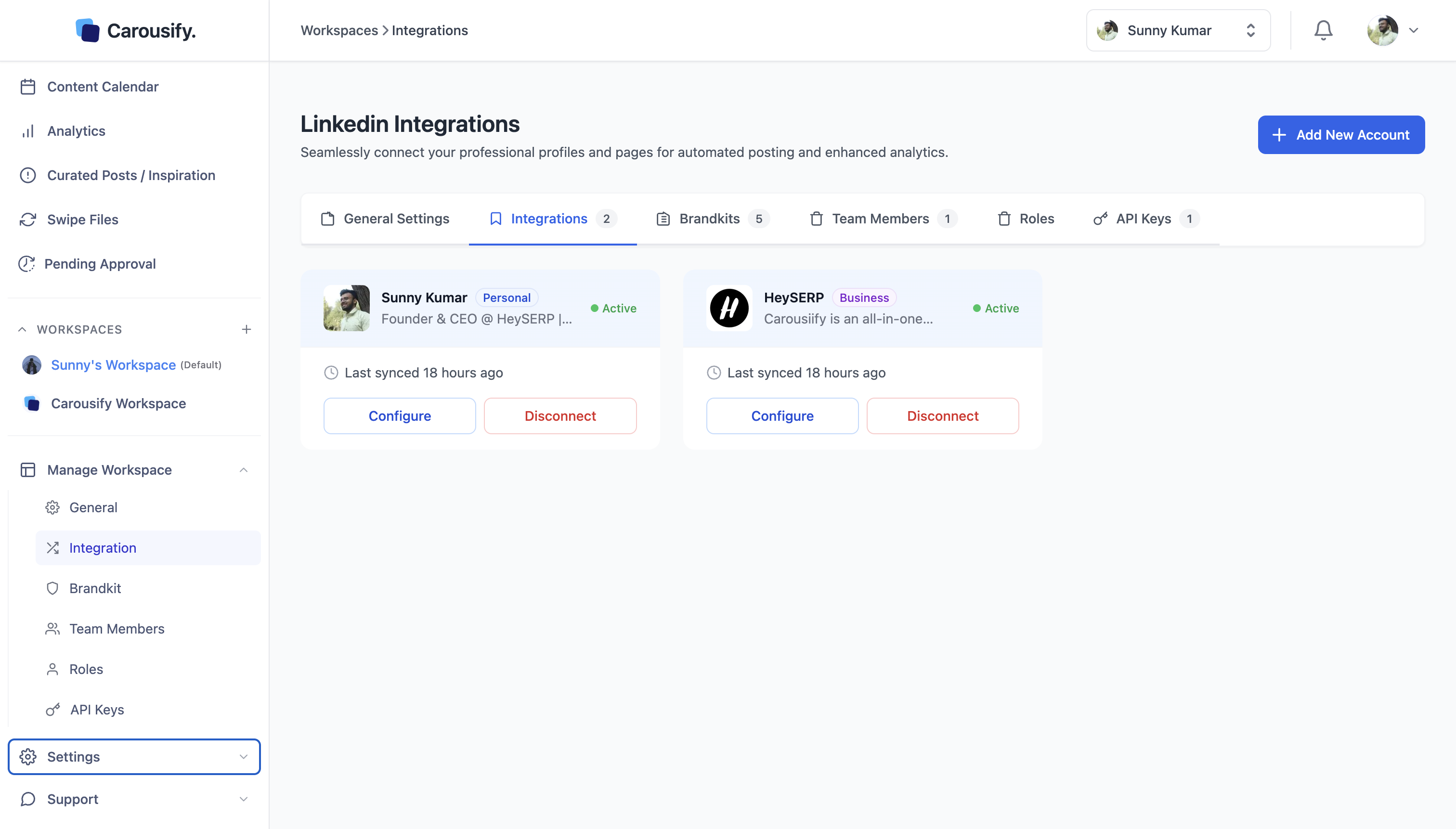
You'll see all your currently connected LinkedIn accounts here. Initially, this will be empty if you're just starting out.
Step 4: Add New Account
Click the blue "Add New Account" button in the top right corner.
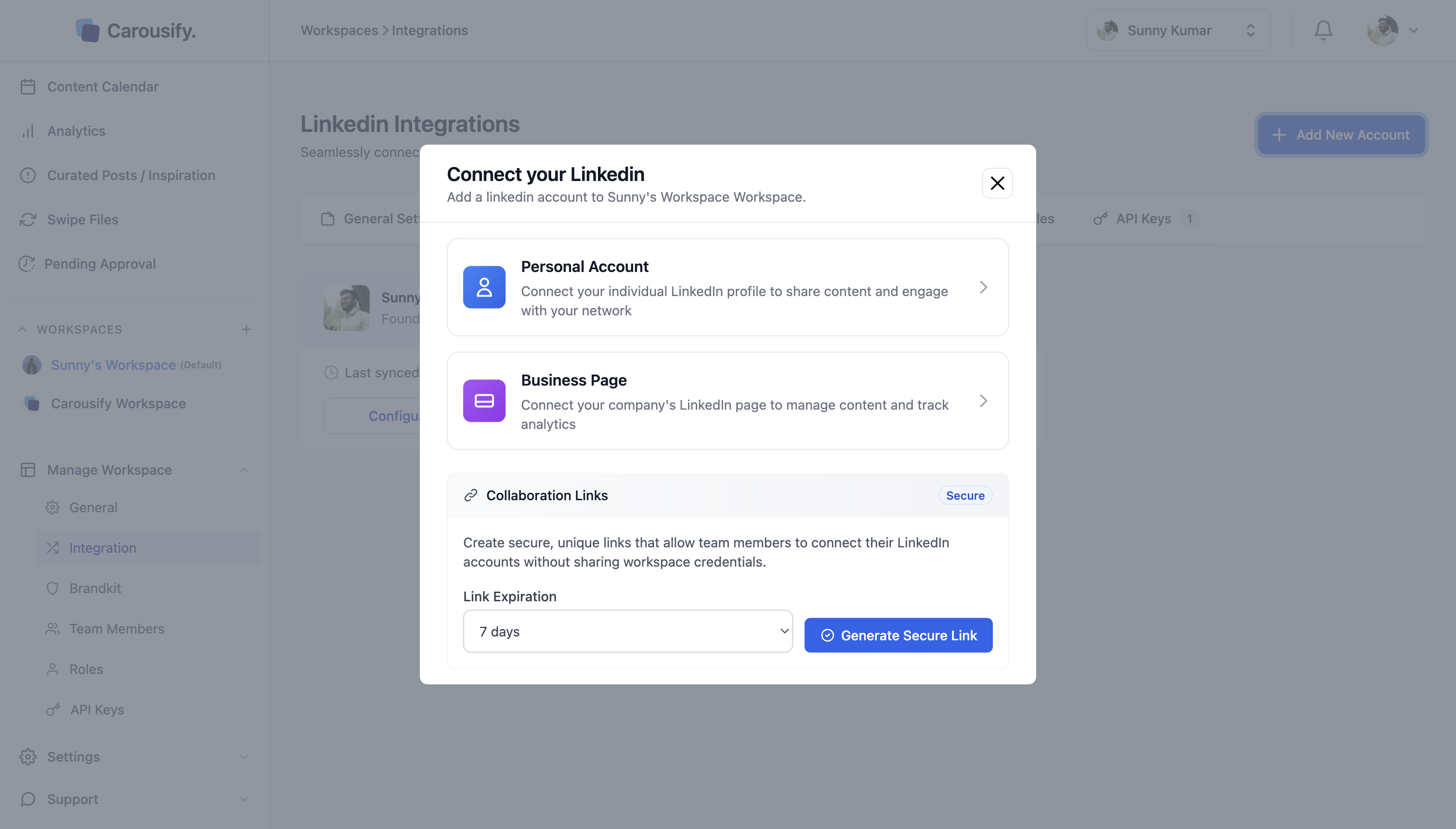
A modal dialog will appear with two options:
- Personal Account – Connect your individual LinkedIn profile to share content and engage with your network
- Business Page – Connect your company's LinkedIn page to manage content and track analytics
Choose the type of account you want to add based on your needs.
Step 5: Generate Secure Collaboration Link (For Team Members/Clients)
This is the brilliant part that makes Carousify perfect for agencies and teams!
If you're managing LinkedIn accounts for clients or team members who want to maintain control of their own accounts, you can use Collaboration Links.
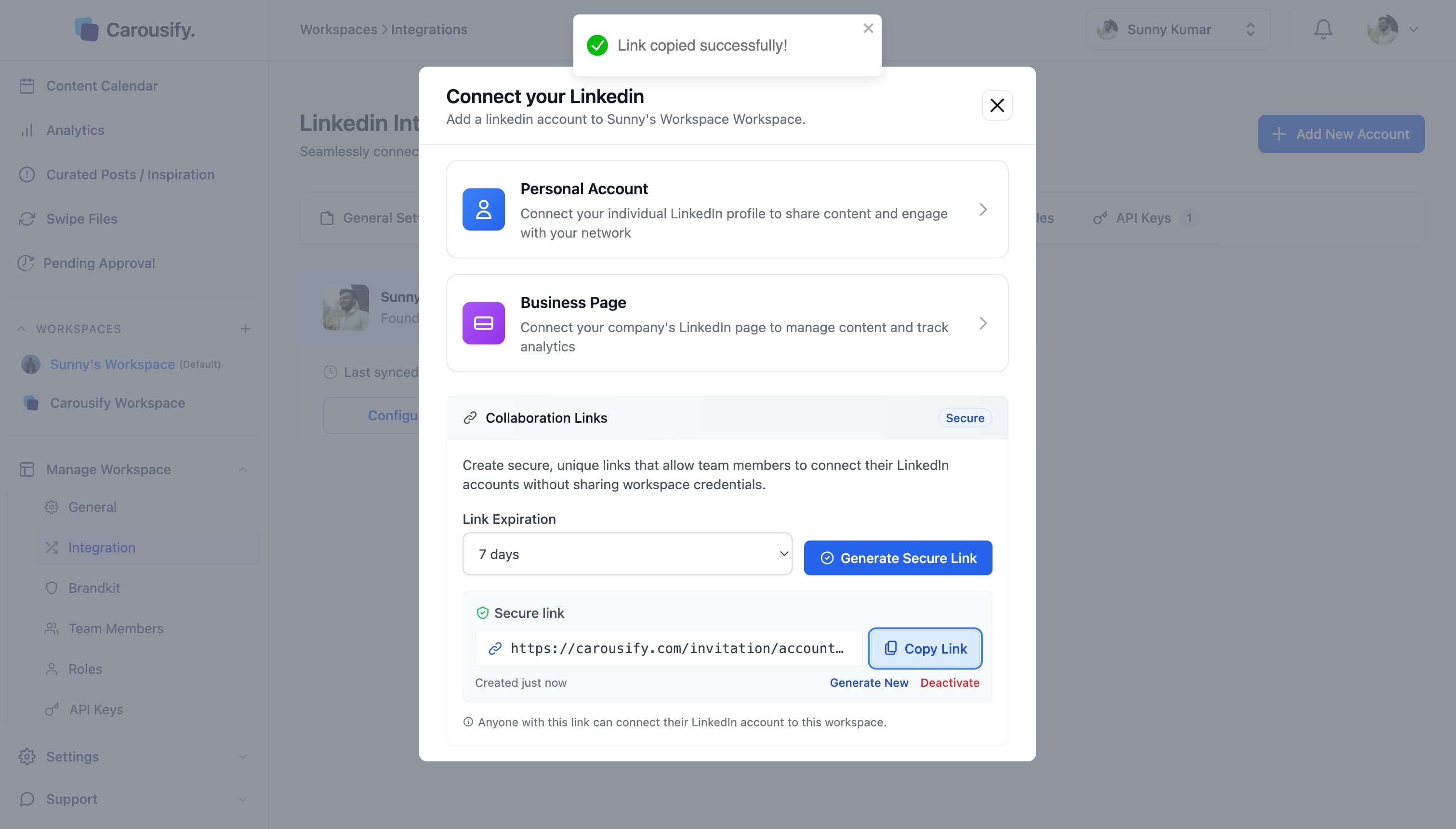
How Collaboration Links work:
- Set the Link Expiration (7 days, 14 days, 30 days, or custom)
- Click "Generate Secure Link"
- Copy the secure link
- Share it with your client or team member via email, WhatsApp, or any messaging platform
What makes this secure:
- The link expires after the set period
- The account owner connects their own LinkedIn account
- You never need their LinkedIn password
- They retain full control of their account
- You get permission to post on their behalf
This is exactly how I manage my clients' LinkedIn accounts. They share access through the secure link, and I can create and schedule posts for them without ever knowing their passwords!
Step 6: Manage Roles and Permissions
Once accounts are connected, you can control exactly what each team member can do.
Navigate to "Team Members" and "Roles" under Manage Workspace to set up permissions:
Available permissions:
- View – Can only see posts and analytics
- Create – Can draft posts but not publish
- Manage – Can edit and delete posts
- Publish – Can publish posts immediately
- Approve – Can approve pending posts (Business plan only)
- Access Accounts – Can connect or disconnect LinkedIn accounts
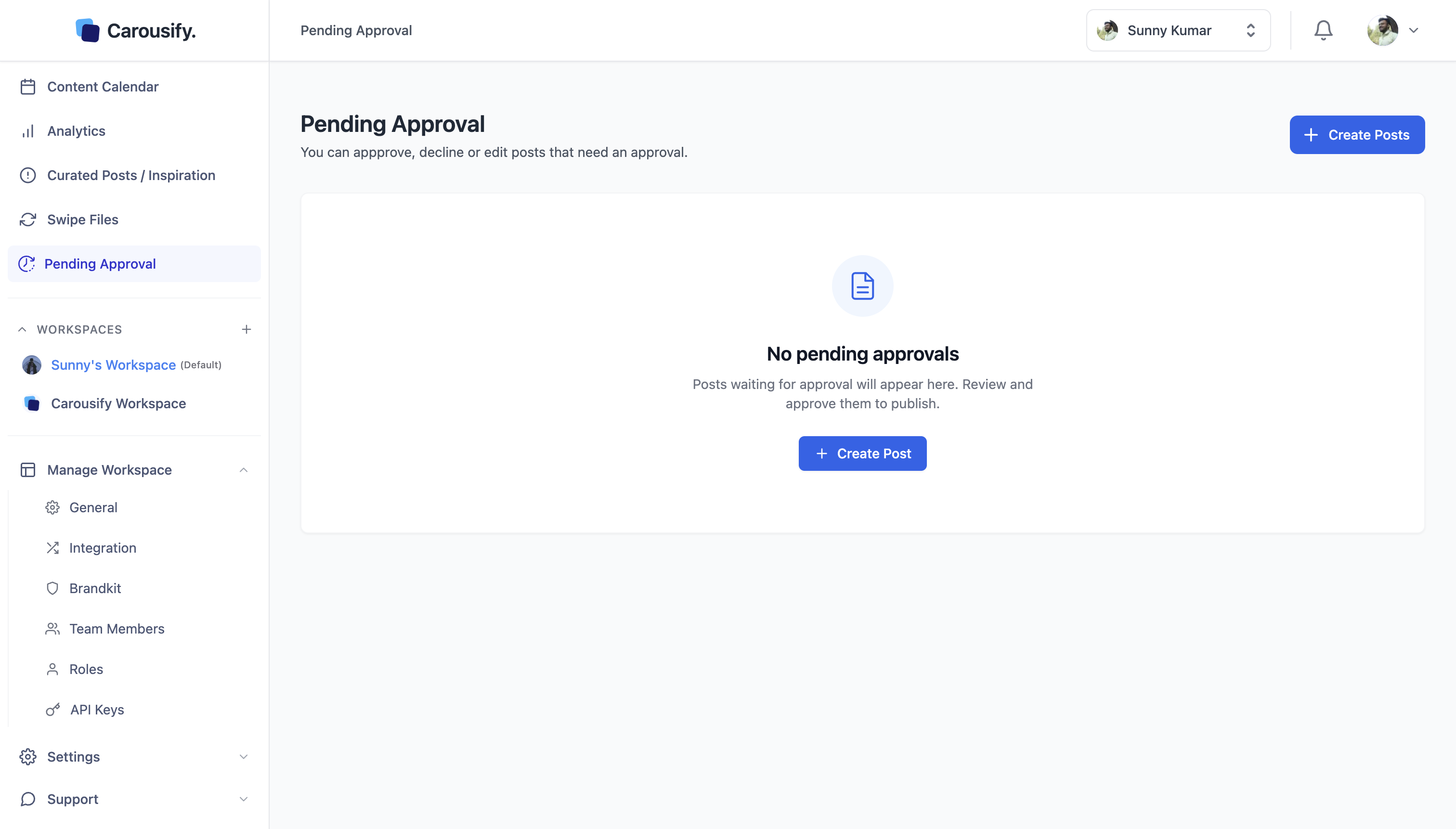
I use the approval workflow with my clients on the Business plan. My team creates content, and the client reviews and approves before it goes live. This ensures quality control without back-and-forth emails!
Step 7: Create and Schedule Posts
Now that your accounts are connected, you can manage all of them from a single dashboard.
Go to "Post Generator" and create your content. When you're ready to publish, you can:
- Choose which accounts to post to
- Schedule different times for different accounts
- Customize content for each account
- Track performance across all accounts
The best part? You're doing all of this safely through LinkedIn's official APIs, so there's zero risk of account restrictions.
Benefits of Using Carousify for Multiple Accounts
After using Carousify for several months, here's what I love:
Complete Safety and Compliance
No risk of account bans since everything runs through official LinkedIn APIs. I sleep peacefully knowing my accounts are safe!
Time Savings
I used to spend 3-4 hours daily switching between accounts and posting manually. Now I batch-create content in 1 hour and schedule everything for the week.
Team Collaboration Made Easy
My content writer drafts posts, my designer adds graphics, and I approve – all without sharing passwords or logging into multiple accounts.
Centralized Analytics
Track performance across all accounts from same dashboard and track which content performs the best.
Client Management
Clients love that they maintain control of their accounts while I handle the content creation and posting. The secure link system builds trust.
Common Questions About Managing Multiple LinkedIn Accounts
Q: Is it legal to manage multiple LinkedIn business pages?
Yes! LinkedIn allows you to manage multiple business pages from a single personal account. This is completely within their terms of service.
Q: Can I use Carousify for my client's accounts?
Absolutely! That's exactly what it's designed for. Use the secure collaboration links to get permission without accessing their passwords.
Q: Will LinkedIn detect that I'm using Carousify?
LinkedIn knows you're using Carousify because it integrates through official APIs. This is perfectly fine and compliant with LinkedIn's policies.
Q: What happens if my secure link expires?
You can generate a new link anytime from the Integration section. The previously connected account remains connected; the link is only needed for initial setup.
Final Thoughts
Managing multiple LinkedIn accounts doesn't have to be risky or complicated. While creating multiple personal accounts is against LinkedIn's policies and can get you banned, there are safe and legitimate ways to handle multiple profiles and business pages.
Using a tool like Carousify can help you manage your LinkedIn account as well as your client's account with ease. So, instead of worrying about account restrictions or juggling different devices, you can focus on creating great content and building genuine connections.
And if you're serious about managing multiple LinkedIn accounts professionally, I would highly recommend giving Carousify a try. The peace of mind alone is worth it!