

LinkedIn carousels are one of the highest-reach formats on the platform. The problem is timing. The best moment to post is rarely the moment you finish designing — and nobody wants to log in at 9 in the morning just to hit publish.
"Scheduling fixes that issue." You build the carousel once, pick when it should go live, and move on.
In this guide, we will go step by step through Carousify. We will start with a blank deck and end with a scheduled post in your content calendar.
Can you schedule a carousel on LinkedIn?
Short answer: not directly from LinkedIn itself.
LinkedIn carousels are really PDF "document" posts. LinkedIn's own scheduler is limited and does not give you a proper way to design the carousel, queue it, and manage it alongside the rest of your content.
That is the gap a tool like Carousify fills. You design the carousel, attach it to a post, and schedule it through LinkedIn's official API — so everything stays compliant and your account stays safe.
Quick note: Carousify never asks for your LinkedIn password. It connects through LinkedIn's official OAuth flow. See Connect your LinkedIn account for how that works.
How to Schedule Carousels on LinkedIn with Carousify
Step 1 — Build your carousel
Open Carousels › Create New in the sidebar. You have three ways to start:
- From a template — the gallery has 45+ ready-made decks plus community templates. Pick one, swap the copy, and you are most of the way there.
- From scratch — a blank canvas where you add headings, text, images, and shapes slide by slide.
- With Smart Carousel — hand the AI a topic, a blog URL, or a YouTube link and it writes the copy across your slides.
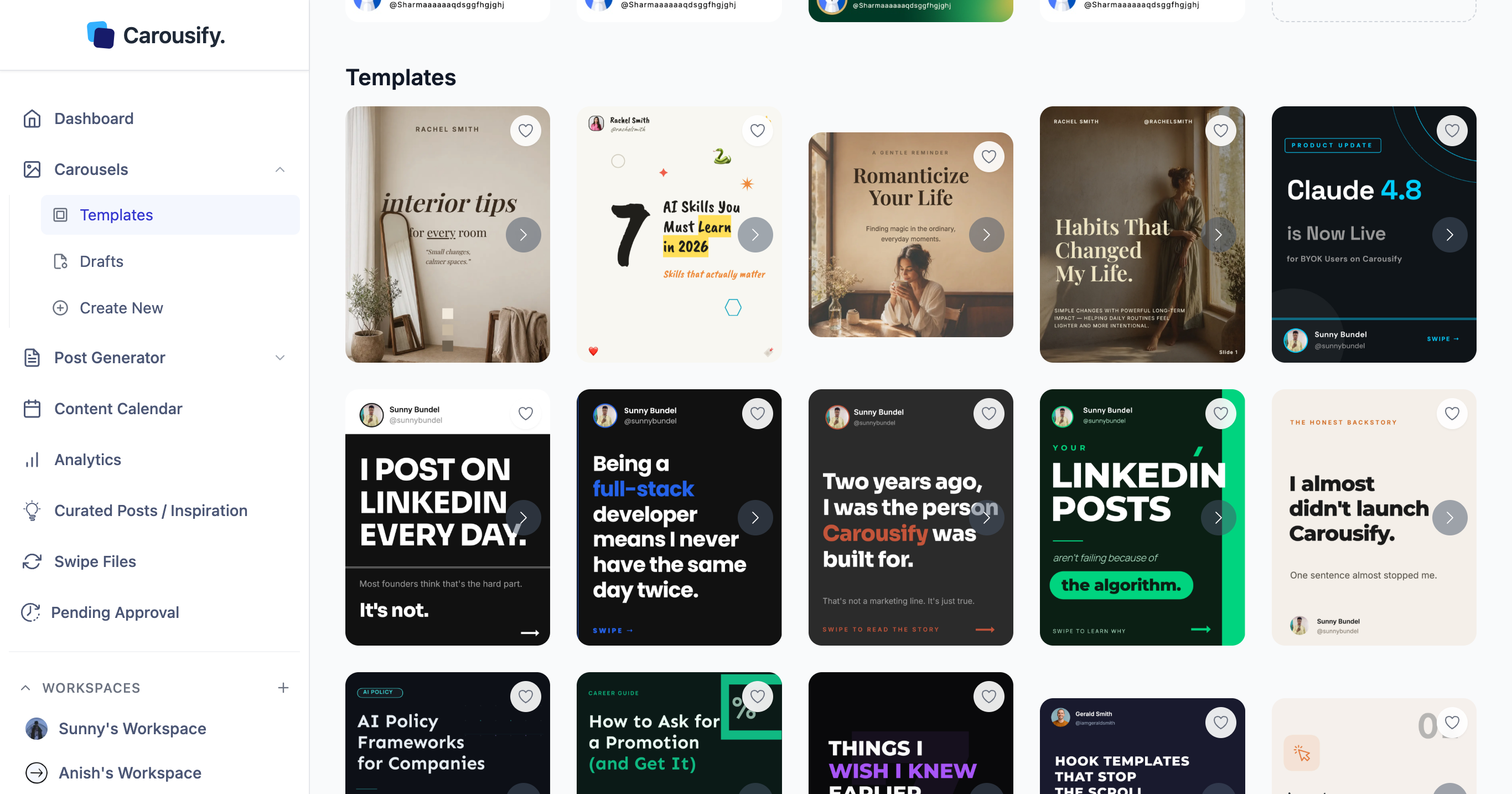
Most people start from a template. It is faster, and the layouts are already sized for LinkedIn.
Once you are inside the editor, everything lives in one place — slides on the left, a live preview on the right, and your Brand Kit one click away.
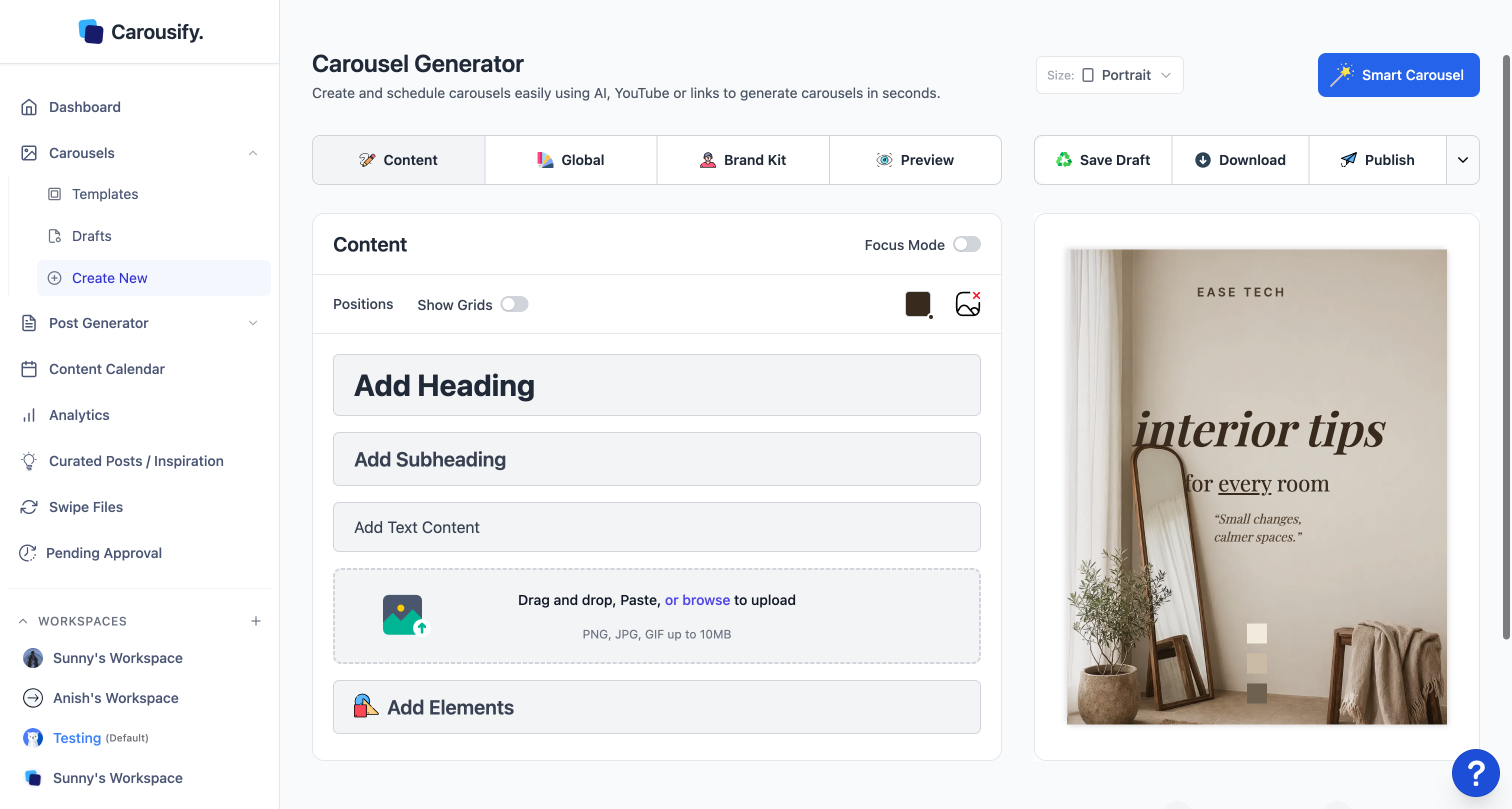
A few things worth doing before you publish:
- Keep the deck to 6–12 slides. Fewer than five and the swipe has no payoff; more than twelve and readers drop off.
- Apply your Brand Kit so colors, fonts, and logo match every slide.
- Use the Preview tab to check how the deck will look on LinkedIn before you ship it.
When the design is ready, click Publish in the top-right. (Want a file instead? Download gives you a PDF or an image set.)
Step 2 — Write your caption and pick the account
Publishing hands your deck to the post composer. This is the same screen you would use for any LinkedIn post — the carousel is just attached to it.
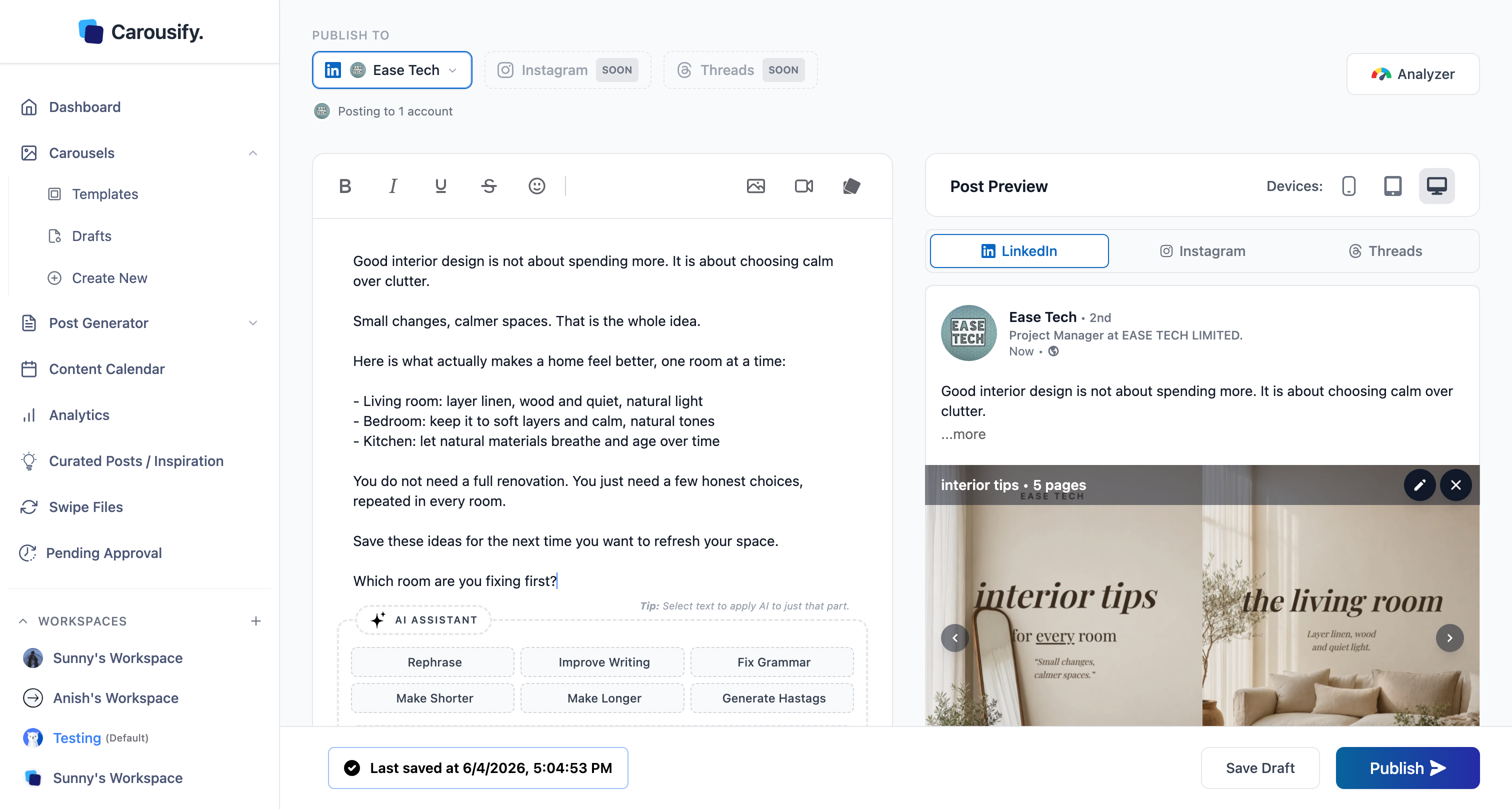
Two things to set here:
- The account — under Publish To, choose the LinkedIn profile or page the carousel should post from.
- The caption — the text that sits above your carousel. The right side shows a live LinkedIn preview as you type, so you can see exactly how the first line and the cover slide land together.
Spend the most time on your first line. On LinkedIn, that opening sentence decides whether anyone stops scrolling to swipe.
When the caption reads well and the right account is selected, click Publish to open the scheduling options.
Step 3 — Toggle Schedule and set the date and time
Clicking Publish opens the Publish Post dialog. Nothing goes live yet — by default it is set to publish immediately.
Flip the Schedule post toggle on, and a date and time picker appears.
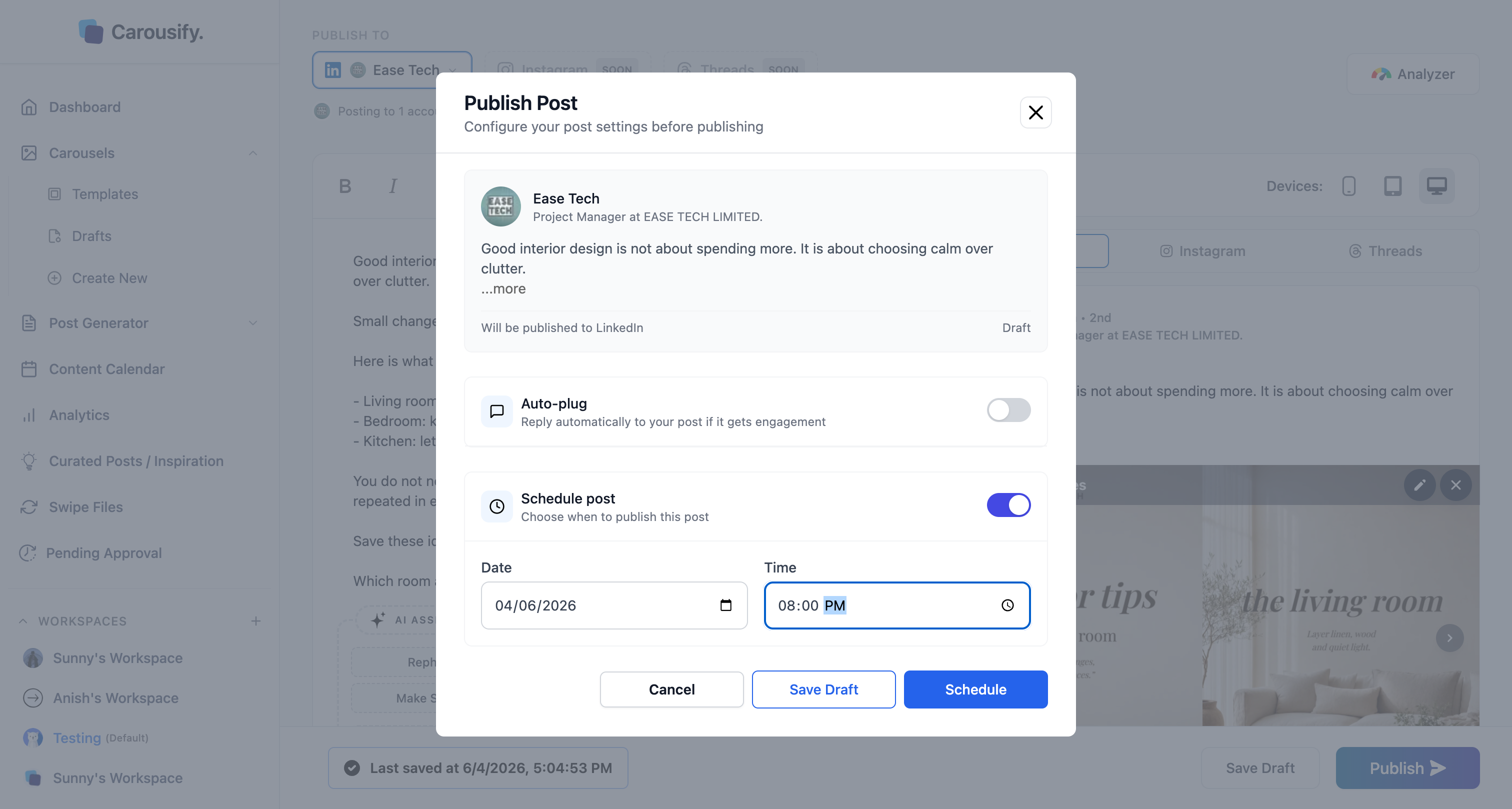
Set the date and time you want the carousel to go live. The Publish Now button changes to Schedule — click it to queue the post.
That is the whole scheduling step. The post now shows Scheduled for [date, time], with a Re-Schedule button if you need to move it later.
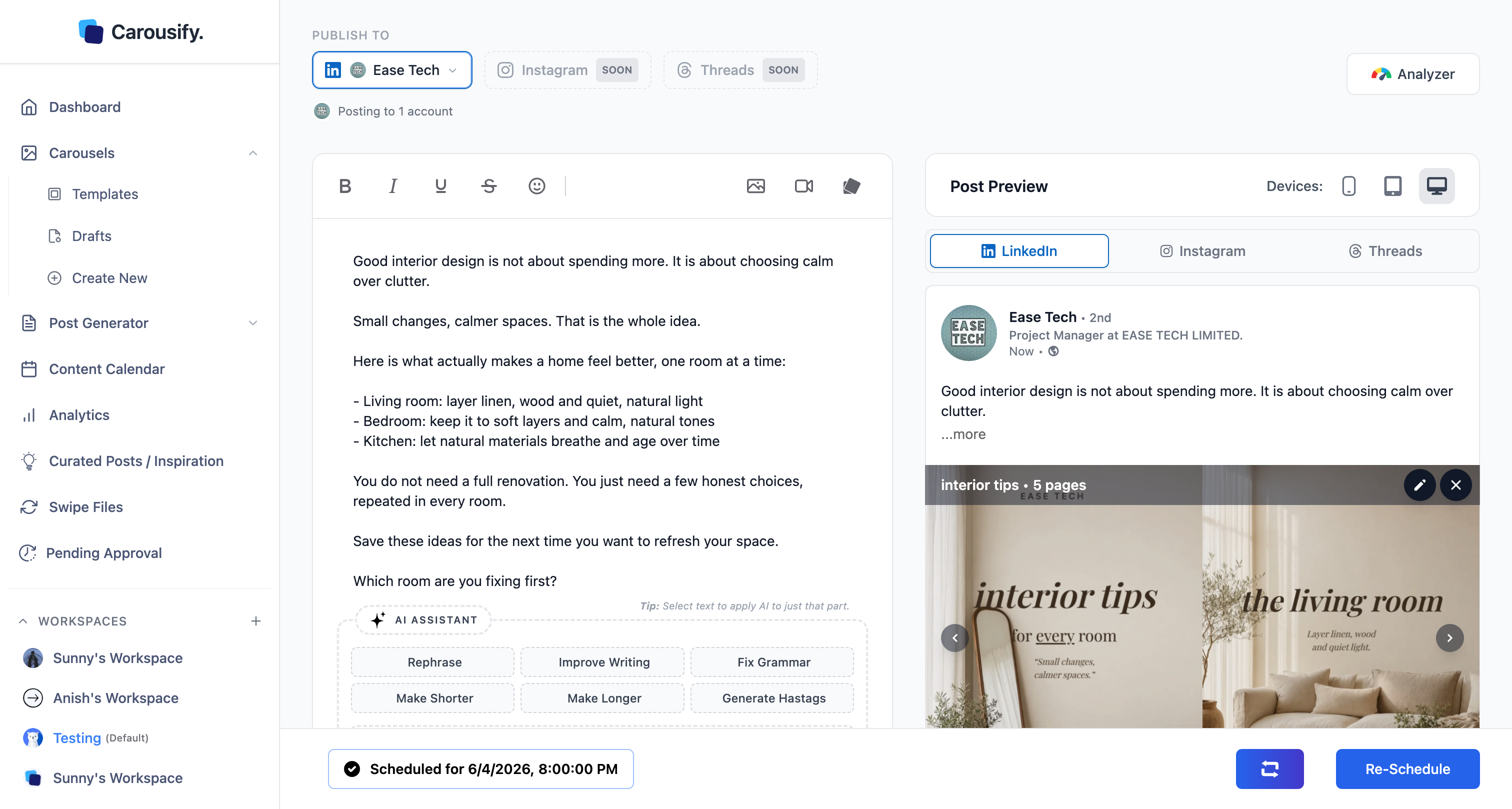
Timezone tip: The date and time use the timezone you set during onboarding (Workspace › General). If you schedule for 8:00 PM, that is 8:00 PM in your workspace timezone — not the viewer's. Set this correctly once and you never have to do timezone maths again.
Step 4 — Add an auto-plug comment (optional)
The first hour of a LinkedIn post matters most for reach. A self-comment with a link or a hook keeps the conversation going — without you needing to be online.
Auto-plug lives in the same Publish dialog. Flip it on, write the follow-up comment, and choose a delay (5 minutes up to 6 hours). Carousify drops the comment on your post automatically after it goes live.
Use it for the thing your post should not carry in the caption — a link to your blog, a lead magnet, or a "comment X and I'll send it over" call to action.
Manage everything in the content calendar
Once a carousel is scheduled, it shows up in the Content Calendar — your single view of everything published, scheduled, and planned.
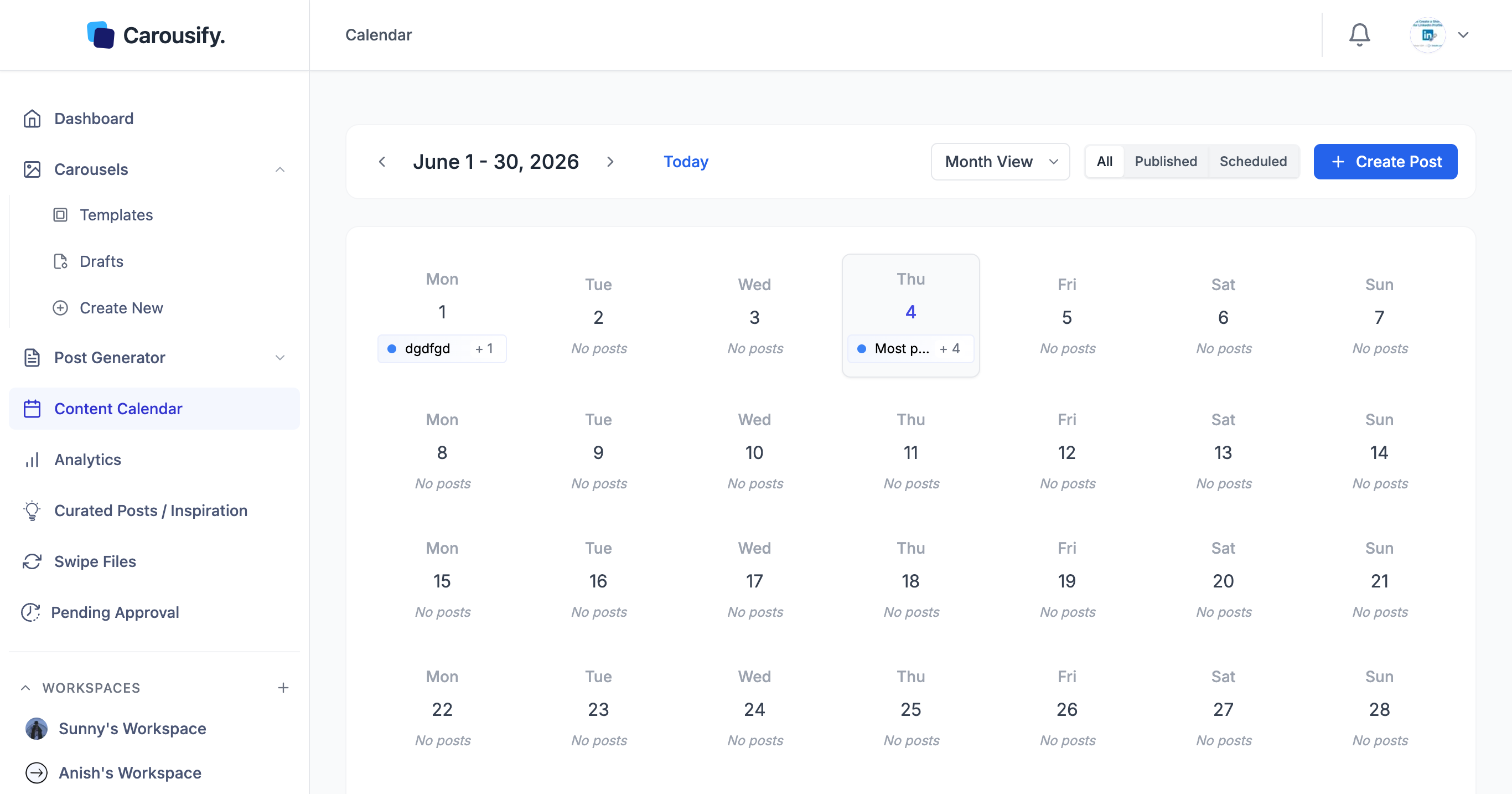
Switch between Month and Week view, and filter by All, Published, or Scheduled. The side panel lists every post queued for the day with quick Publish Now or Edit actions.
This is where batching pays off. Block an hour, build four or five carousels, schedule them across the week, and your LinkedIn presence runs itself.
Need to move a scheduled carousel?
Open the post from the calendar or from Post Generator › Published, click Re-Schedule, change the date or time, and confirm. The post jumps to its new slot in the calendar — no need to rewrite or rebuild anything. Full steps are in Reschedule a post.
Best times to schedule LinkedIn carousels
There is no single perfect time, but a few patterns hold up well for most B2B audiences:
| When | Why it works |
|---|---|
| Tuesday–Thursday | Mid-week is when professional feeds are most active. |
| 8–10 AM (local) | People check LinkedIn at the start of the workday. |
| 12–1 PM (local) | The lunch-break scroll. |
| Avoid weekends | Reach usually dips Saturday and Sunday for B2B. |
Treat these as a starting point. The real answer is in your own analytics — schedule consistently for a few weeks, then shift your slots toward whatever your audience actually responds to.
Frequently asked questions
Can I schedule LinkedIn carousels for free?
Scheduling and publishing in Carousify require an active plan. You can design carousels and explore the editor first, but queuing a post to publish later needs a paid subscription. See the pricing page for the current plans.
Does scheduling through Carousify break LinkedIn's rules?
No. Carousify publishes through LinkedIn's official API and never asks for your password. Scheduled carousels post the same way a manual post would — fully within LinkedIn's terms.
Can I schedule carousels to a LinkedIn company page?
Yes. Connect the page from Workspace › Integrations (page support starts on the Startup plan and up), then select it under Publish To before scheduling. The carousel posts as the page instead of as you.
How many carousels can I schedule at once?
There is no fixed cap on scheduled posts — you can queue a full week or month in one sitting. The practical limit is your plan's account and workspace limits, not the number of scheduled posts.
Can I reschedule or cancel a scheduled carousel?
Yes. Open the post from the content calendar, click Re-Schedule to change the date or time, or delete it to cancel. Changes show up in the calendar immediately.
Will the carousel post as a proper swipeable document?
Yes. Carousify sends the deck to LinkedIn as a PDF document, which LinkedIn renders as a native, swipeable carousel — exactly like one you would upload by hand.
Summing up
Scheduling LinkedIn carousels is the simplest habit you can build for consistent reach. Design the deck once, attach a caption, pick a time, and let it publish on its own.
With Carousify, the whole flow lives in one place — build in the Carousel Maker, schedule from the Publish dialog, and manage it all from the content calendar. Add an auto-plug comment and you are also covering the critical first hour after the post goes live.
Ready to stop posting manually? Build your first carousel and schedule it in the next ten minutes.
What is stopping you from batching a full week of carousels in one sitting?