

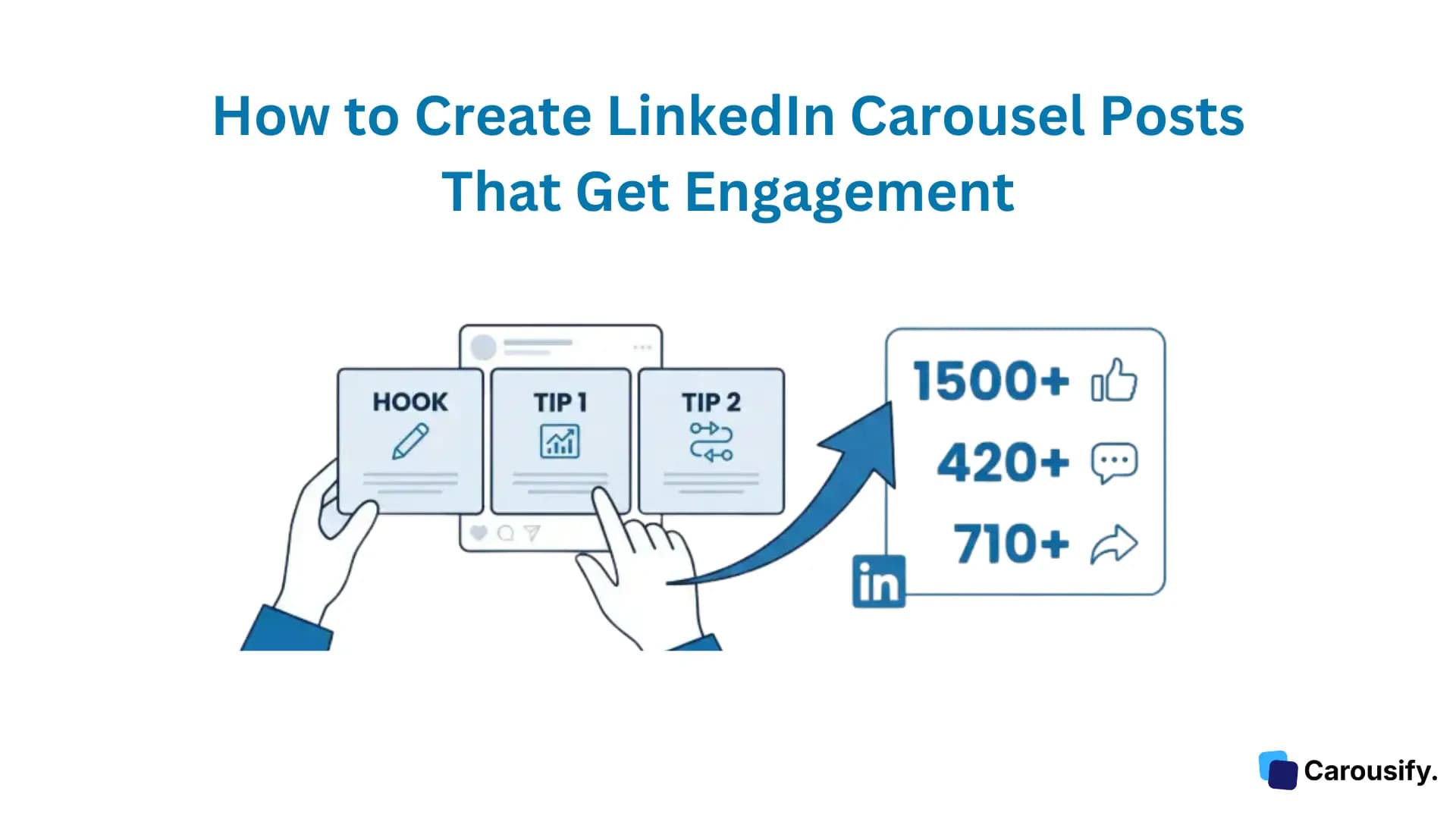
LinkedIn carousels are the highest-performing content format on the platform right now. They pull a 6.60% average engagement rate — that's 278% more than video posts and nearly 596% more than plain text posts.
I've been creating LinkedIn carousels for over a year, and the difference in reach compared to my regular text posts is night and day. Buffer ran the same experiment — one week of carousel posts gave them 14,000+ impressions versus 5,000 with text and image posts the week before.
In this guide, I'll walk you through exactly how to create LinkedIn carousels, the right dimensions to use, what content actually works, and the mistakes that kill your reach.
What Is a LinkedIn Carousel Post?
A LinkedIn carousel is a multi-slide, swipeable document post. Think of it like a mini-presentation that people can flip through directly in their feed — no clicking away to another page.
Here's the important distinction: LinkedIn removed native multi-image carousels back in December 2023. The carousel format that works today is a document upload — you upload a PDF, PowerPoint, or Word file, and LinkedIn converts each page into a swipeable slide.
Why carousels dominate the feed:
- They take up more screen real estate than any other post type
- Every slide swipe counts as an engagement signal to the algorithm
- 76% of LinkedIn users prefer visual content over text-heavy posts
- The swipe mechanic creates a "micro-commitment" loop — once someone swipes to slide 2, they're likely to keep going
Quick Note:
LinkedIn carousel ads (paid) and organic carousel posts are different things. Carousel ads use individual images and run through Campaign Manager. This guide focuses on organic document-based carousels that anyone can post for free.
LinkedIn Carousel Size and Specs
Getting the dimensions wrong means blurry slides, cropped text, and wasted effort. Here are the exact specs you need:
Organic Carousel Posts (Document Upload)
| Spec | Details |
|---|---|
| Recommended Size | 1080 x 1080 px (square) or 1080 x 1350 px (portrait) |
| Aspect Ratio | 1:1 (square) or 4:5 (portrait) |
| File Formats | PDF, PPT, PPTX, DOC, DOCX |
| Max File Size | 100 MB |
| Max Pages | 300 (but don't use anywhere near that) |
| Optimal Slide Count | 6-12 slides |
Carousel Ads (Paid)
| Spec | Details |
|---|---|
| Size | 1080 x 1080 px (square only) |
| File Formats | JPG, PNG, GIF (non-animated) |
| Max File Size | 10 MB per image |
| Slides | 2-10 per carousel |
| Headline Limit | 45 characters per slide |
| Intro Text | 255 characters max |
Which size should you pick?
Go with 1080 x 1350 px (portrait/4:5) for organic posts. It takes up significantly more screen space on mobile — and 51% of LinkedIn's active users are on mobile. More screen space means more attention, which means more engagement.
Square (1080 x 1080) works fine too, especially if your content has wide charts or side-by-side comparisons. But for most carousel types, portrait wins.
How to Create a LinkedIn Carousel Post (Step-by-Step)
There are two main approaches: the manual way (design tools) and the faster way (using a dedicated carousel builder like Carousify). I'll cover both.
Method 1: The Manual Way (Canva, Google Slides, PowerPoint)
Step 1: Design Your Slides
Open Canva, Google Slides, or PowerPoint and set your canvas size to 1080 x 1350 px (portrait) or 1080 x 1080 px (square).
Design each slide individually. Keep text large enough to read on mobile — minimum 24px for body text and 36px+ for headlines.
Step 2: Export as PDF
Once your slides are ready, export the entire file as a PDF. This is important — LinkedIn converts each PDF page into one carousel slide.
If you're using PowerPoint, go to File > Save As > PDF. In Canva, click Share > Download > PDF Standard.
Step 3: Create a New LinkedIn Post
Go to your LinkedIn homepage and click "Start a post."
Step 4: Upload Your Document
Click the document icon (it looks like a page with a folded corner) in the post creation toolbar. Select your PDF file.
Step 5: Add a Document Title
LinkedIn will ask you to add a title for the document. This title appears at the top of your carousel, so make it descriptive and compelling. Think of it as a second headline.
Step 6: Write Your Caption
Write an engaging caption that hooks readers into swiping. The first 1-2 lines appear above the "see more" fold, so front-load the value there.
Step 7: Post or Schedule
Hit Post to publish immediately, or use the clock icon to schedule it for a better time.
Method 2: The Faster Way (Using Carousify)
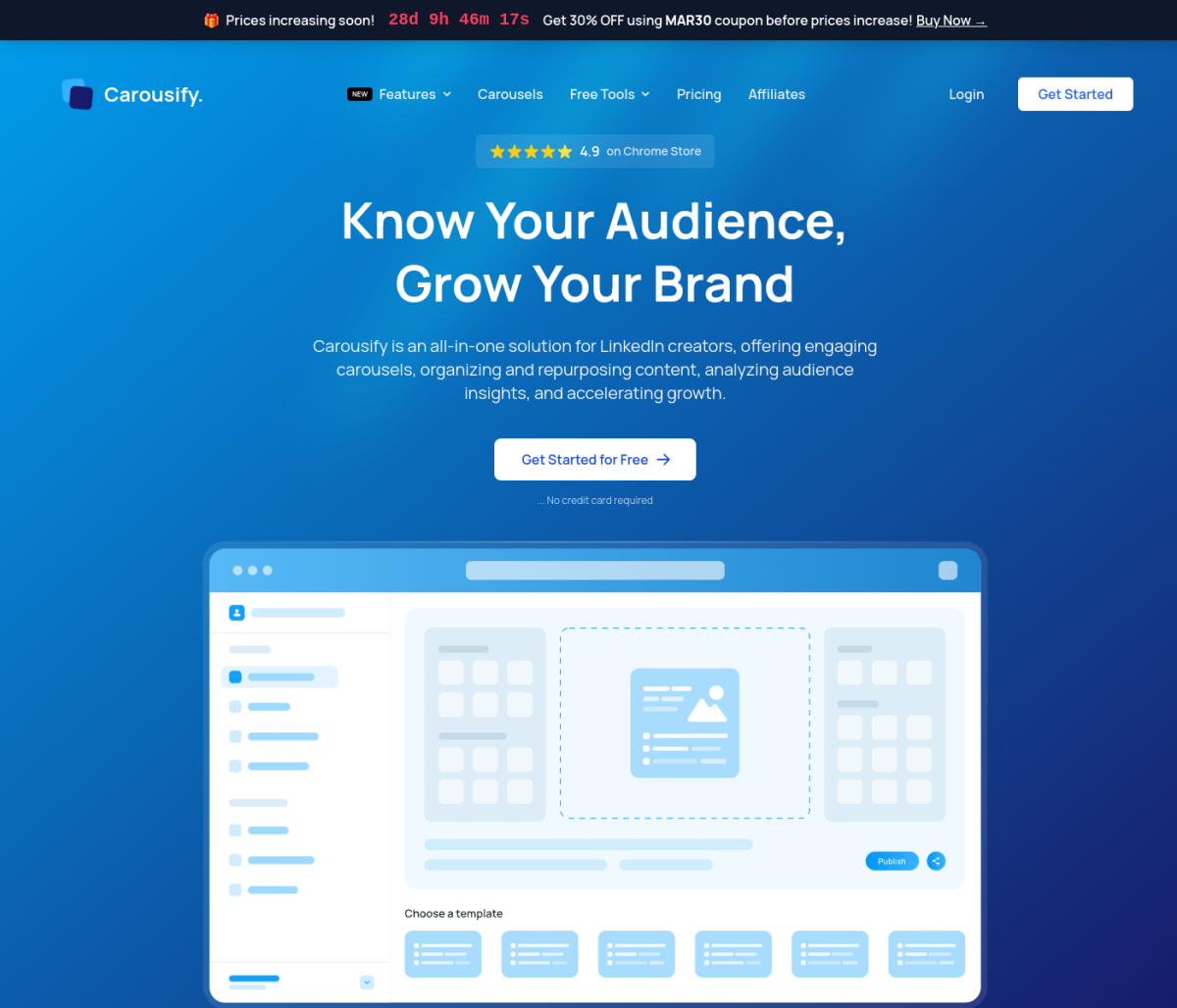
The manual process works, but it's slow. Designing slides in Canva or PowerPoint, exporting, uploading — that's easily 2-3 hours per carousel.
Carousify cuts that down to about 15 minutes. Here's how:
- Log in to your Carousify account and go to Carousel Maker
- Pick a template from hundreds of pre-designed LinkedIn carousel layouts
- Customize the text, colors, fonts, and images to match your brand
- Preview exactly how it'll look in the LinkedIn feed
- Click Publish or Schedule — Carousify handles the formatting and posting automatically
What makes this faster than Canva:
- Templates are already sized correctly for LinkedIn (no manual dimension setup)
- You can repurpose existing content — paste a blog URL, upload a PDF, or drop in a YouTube link, and Carousify converts it into carousel slides
- The AI writing assistant can generate slide copy from a topic or outline
- Scheduling is built in, so you skip the download-then-upload step entirely
I switched from Canva to Carousify three months ago, and I went from publishing one carousel per week to four. The time savings alone made it worth switching.
7 Types of LinkedIn Carousels That Get High Engagement
Not all carousels perform equally. After analyzing dozens of high-performing carousel posts, these are the content types that consistently pull strong engagement:
1. Step-by-Step Tutorials
Walk people through a specific process: "How I set up my email marketing in 30 minutes" or "5 steps to audit your LinkedIn profile." Educational carousels perform extremely well because each slide delivers a clear, actionable step.
2. Myth-Busting / Hot Takes
Take common beliefs in your industry and challenge them. "5 LinkedIn tips that are actually terrible advice" grabs attention because it triggers curiosity and disagreement — both of which drive comments.
3. Before/After Transformations
Show a real result: a profile makeover, a website redesign, a revenue graph. The visual contrast between "before" and "after" makes people stop scrolling.
4. Data and Statistics Breakdowns
Turn research findings or industry data into visual slides. "I analyzed 500 LinkedIn posts — here's what the top 1% do differently." Data-driven carousels get shared heavily because they're reference-worthy.
5. Personal Stories and Lessons Learned
Share a failure, a career pivot, or a surprising lesson. "I got fired. Here's what happened next." Personal stories create emotional connection, and emotional content generates 3x more comments than purely informational posts.
6. Listicles and Tool Roundups
"10 free tools every marketer should know" or "7 books that changed how I think about business." Simple, scannable, and shareable — these carousel types consistently hit 5,000+ impressions.
7. Industry News Summaries
Break down a major industry update into digestible slides. When LinkedIn changes its algorithm, when Google drops an update, when a major company makes a move — be the person who explains it simply.
The Optimal Number of Slides
This is a question I get asked all the time: how many slides should a LinkedIn carousel have?
The data says 6-12 slides is the sweet spot.
Here's the breakdown based on engagement patterns:
| Slide Count | Performance |
|---|---|
| 3-5 slides | Too short — doesn't build enough momentum or dwell time |
| 6-10 slides | Sweet spot — enough depth without overwhelming |
| 10-15 slides | Still strong if every slide delivers value |
| 15+ slides | Diminishing returns — completion rate drops significantly |
My personal experience matches this. My best-performing carousels have been 8-10 slides. Short enough to finish in under 60 seconds, long enough to deliver real substance.
The key isn't the exact number — it's that every single slide earns its place. If you can make your point in 7 slides, don't stretch it to 12 with filler. If you genuinely need 14 slides, use 14. But audit ruthlessly — any slide that doesn't add unique value should be cut.
When to Post LinkedIn Carousels
Timing matters more than most people realize. The first 60-90 minutes after posting are critical — that's when LinkedIn's algorithm decides whether to push your content to a wider audience.
Best times to post carousels:
- Tuesday to Thursday: 7:00 AM - 9:00 AM (before work)
- Tuesday to Thursday: 12:00 PM - 1:00 PM (lunch break)
- Wednesday: Consistently the highest engagement day
Avoid:
- Friday afternoons and weekends (engagement drops 30-40%)
- Late evenings (unless your audience is in a different time zone)
If you're using Carousify, the scheduling feature lets you batch-create carousels on the weekend and schedule them to publish at optimal times during the week. I create 4-5 carousels every Sunday and schedule them for Tuesday through Friday mornings.
LinkedIn Carousel vs Other Post Formats
How do carousels stack up against other content types? Here's what the data shows (source: Social Insider LinkedIn Benchmarks):
| Format | Avg. Engagement Rate | Best For |
|---|---|---|
| Carousel/Document | 6.60% | Education, tutorials, storytelling |
| Native Video | 3.18% | Behind-the-scenes, interviews |
| Image Post | 2.40% | Quick tips, quotes, memes |
| Text Only | 1.10% | Hot takes, short stories |
| External Link | 0.80% | Blog traffic (but penalized by algorithm) |
Carousels win across the board for engagement. The swipe mechanic creates passive engagement signals that text posts simply can't generate.
That said, don't post only carousels. A healthy LinkedIn content mix is roughly 50% carousels, 25% text posts, 15% images, and 10% video. Variety keeps your audience engaged and tests what resonates best with your specific network.
Summing Up!
LinkedIn carousels pull 6.60% engagement versus 1.10% for text posts — the gap is massive, and the format is still underused by most creators. If you're not posting carousels yet, you're leaving reach and engagement on the table.
Start simple: pick one topic you know well, break it into 8-10 slides, and post it during peak hours (Tuesday-Thursday morning). Track the results and compare them to your regular posts. The difference will speak for itself.
If you want to skip the design hassle and post carousels consistently, Carousify handles the templates, formatting, and scheduling so you can focus on the content. Try the Hobby plan at $4.99/month and see the difference in your impressions within a week.